

User Guide
Welcome to Objectuve — the gamified goal tracker designed for action, not endless scrolling. This guide covers everything you need to know, from creating your account to unlocking Legendary badges.
This page is also the editorial source for the public user guide. As of v4.21 Phase 1 (OBJ-1846), this content is carved into a public, unauthenticated 7-group IA on its own
enkidu-guideFirebase Hosting target (guide_site/), decoupled from this staff-gated docs site. The public site is live athelp.objectuve.com(HTTPS goes live once the certificate finishes validating). See DOCS-AUDIT.md for the full carve-out record. Edit this page for internal/editorial accuracy; the public mirror is carved from it, not hand-maintained separately.
See also: Site map (every page, grouped by auth state) and User flows (sign-up, daily check-in, goal lifecycle, Coach setup as diagrams).
1. Getting started
Creating your account
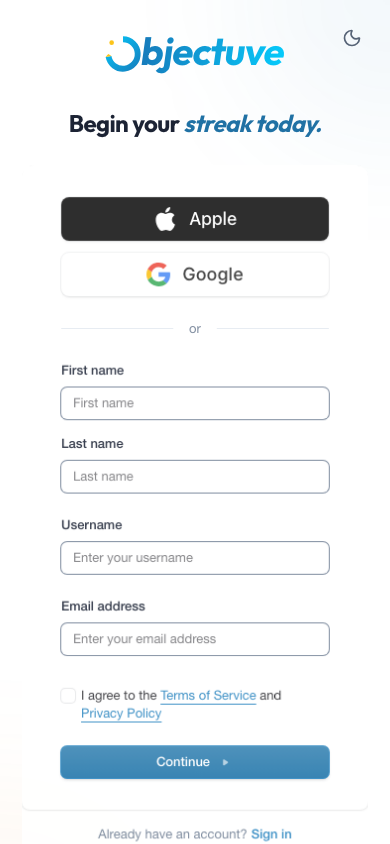
Head to the sign-up page and create an account using Google, Apple, or email. Authentication is handled securely by Clerk.
Onboarding
After your first sign-in, a quick Getting started flow points your Coach in the right direction — about two minutes, ten small questions, and you're off. You can change any answer later.
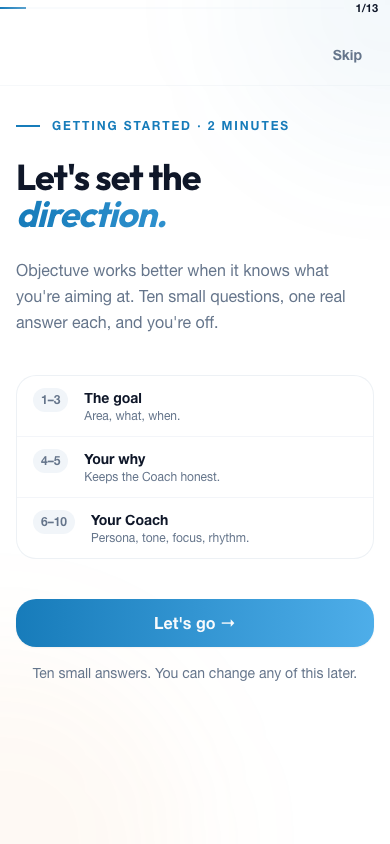
The questions are grouped into three short stretches:
- The goal — the life area you want to focus on, what you're aiming at, and (optionally) when. This becomes your very first goal.
- Your why — a sentence or two on why it matters. This keeps your Coach honest and gives its insights context.
- Your Coach — your Coach persona, how direct its tone should be, what it should focus on, and how often you want to hear from it.
When you finish, Objectuve drops you straight onto your new goal. Nothing here is permanent — retune your Coach any time from Settings → Meet your Coach (see §7), and manage everything else from the Coach tab (see §8).
Take the dashboard tour
Right after you land on your new dashboard, a short guided tour (6 quick stops — your streak, check-in, Coach, today's actions, your goals, and navigation) points out where everything lives. It's entirely optional — skip it anytime with the Skip button, the Escape key, or by tapping outside it — and it only ever shows once. The first time you visit Goals, Coach, Communities, Achievements, or the Feed, you'll get the same kind of quick tour for that surface, just as skippable. Forgot to look, or want a refresher? Replay any of them from Settings → Tours (see §16). See Feature Tour for the full technical reference.
2. Your dashboard
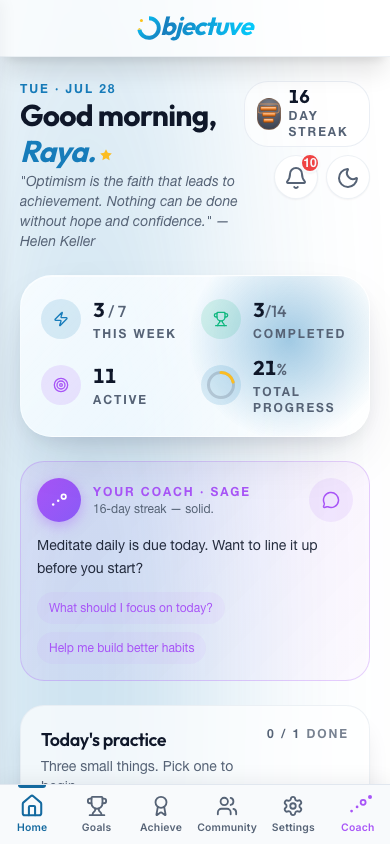
The Dashboard is your home base. It adapts to where you are in your journey and what needs attention today.
First-week experience
If you haven't created a goal yet, the Dashboard opens with a calm first-week invitation from The Sage rather than empty cards. You'll see:
- A short message inviting you to start with one small practice
- Set your first goal and Talk to The Sage primary actions
- A list of suggested practices you can quick-add as habits
Dashboard sections (full view)
Once you have at least one goal, the full dashboard is organized into these sections:
| Section | What it shows |
|---|---|
| Momentum bar | Stat cards: current streak, this week's check-ins, completed vs. active goals, and overall progress percentage |
| Critical Path | A "Today's puzzle" card with a single small play to move your most important goal forward — tap Play to begin |
| Today's practice | Up to three habits due today with one-tap check-in, a mood prompt row ("How's today feeling?"), and a single Coach insight pinned to the bottom of the card |
| Needs attention | A compact alert card for any urgent or stale goal: tap the goal name to jump to the detail page, or tap Update to log a progress event inline |
| Your goals | All active goals in a responsive grid, sorted by priority (at-risk goals surface first) |
| Partner widget | If you have an accountability partner, their check-in status and a daily nudge button |
| Social | Encouragement and comment counts plus recent ally activity |
| Weekly activity | Seven day-circles (Mon–Sun) showing which days you checked in |
| Showcased achievements | Your selected badges on display |
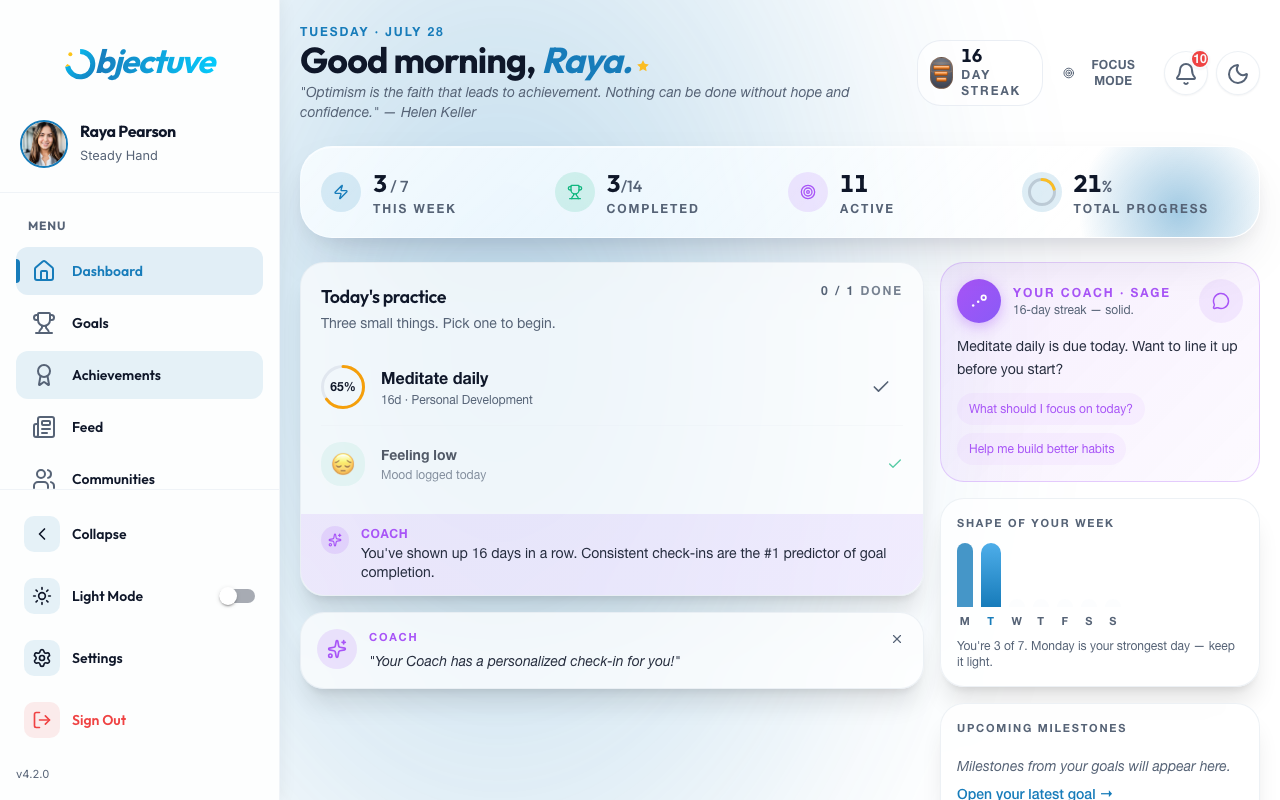
Your current streak appears as a stones pill in the header by default — everyone can switch to sprout for free, and Supporters get flame, mountain, and waves too (see §5). The Today's practice card shows a per-card progress count (e.g., 1 / 1 DONE) and an empty state if nothing is scheduled. Each habit row has a circular completion ring around its check button — filled in green once you've checked in for the day.
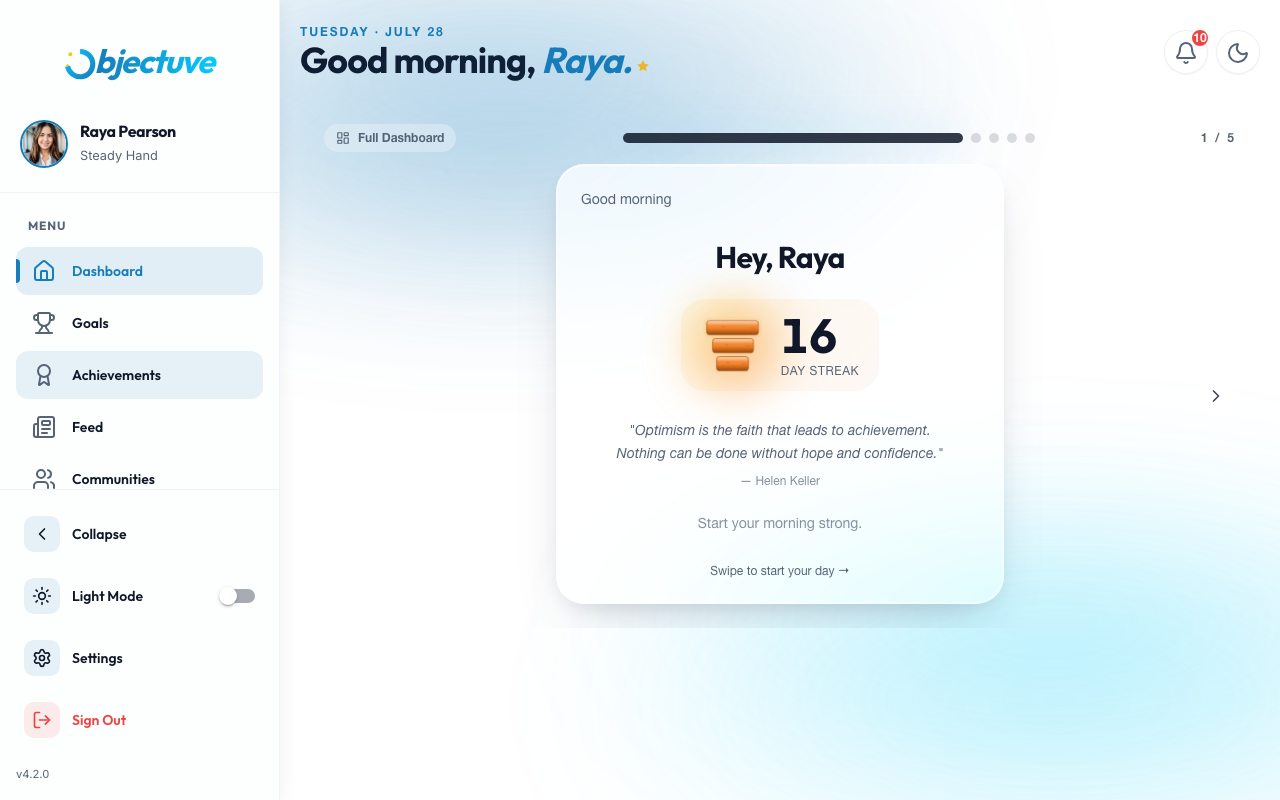
On desktop, the side navigation is always visible alongside the dashboard:
Streamlined view (Focus Mode)
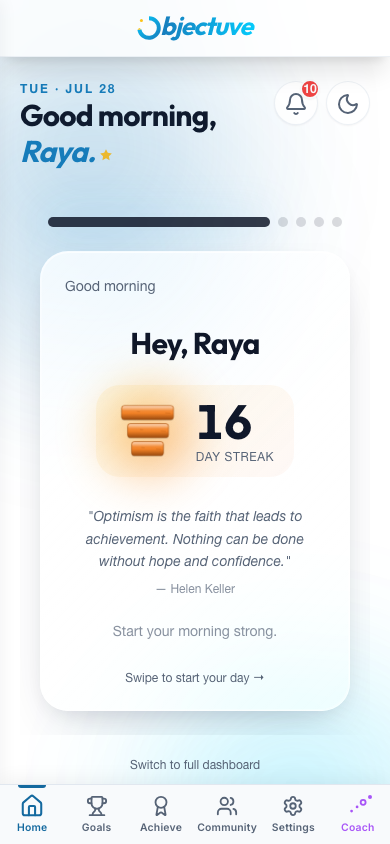
Streamlined view is a card-stack interface designed for quick daily check-ins (2–3 minutes). Instead of scrolling sections, you swipe through one card at a time:
- Greeting — streak count and a motivational quote
- Habit cards — one per habit due today, tap to check in (auto-skips completed habits)
- Mood — tap a mood to log how you're feeling (skipped if already set today)
- Urgent goal — shown if any goal needs attention, with an "Add Progress" button
- Insight — a personalized tip from your Coach
- Social nudge — a partner or ally cue if relevant
- Done — celebration with confetti, session stats, and a link to the full dashboard
Dashboard mode setting
Choose how the Dashboard opens in Settings → Dashboard mode:
- Focus — always opens in streamlined card-stack mode
- Full — always opens in the full dashboard
- Auto (default) — shows the streamlined view when all habits are checked in and no urgent goals remain; switches to the full dashboard when there's work to do
3. Navigation
Mobile
Use the bottom tab bar to move between sections. There are six tabs:
- Home — Dashboard
- Goals — Your goal list
- Achieve — Achievement Hall (badges, XP, and ranks)
- Community — Browse and join communities
- Settings — Profile, preferences, and account
- Coach — Your Coach home (check-in, weekly synopsis, chat, and personalization)
The activity Feed is no longer a bottom-tab on mobile — you can still reach it from the desktop side menu and from the Social section of your Dashboard. Admins manage the platform from the separate Admin Dashboard (linked in the desktop side menu), not from an in-app tab.
Desktop
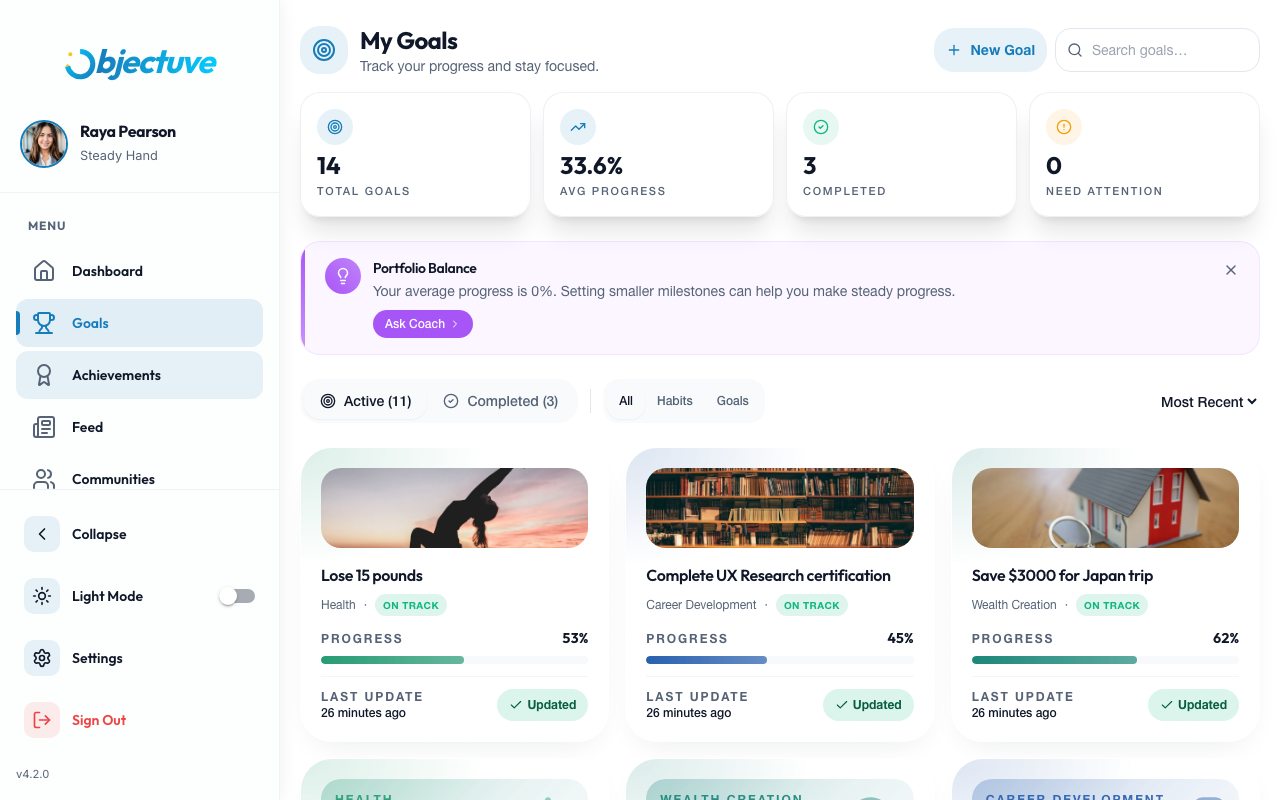
The side menu provides the same destinations plus the Feed, a theme toggle (light/dark), and your profile summary. Admins also see an Admin Dashboard link that opens the admin app in a new tab.
4. Goals
Goals list
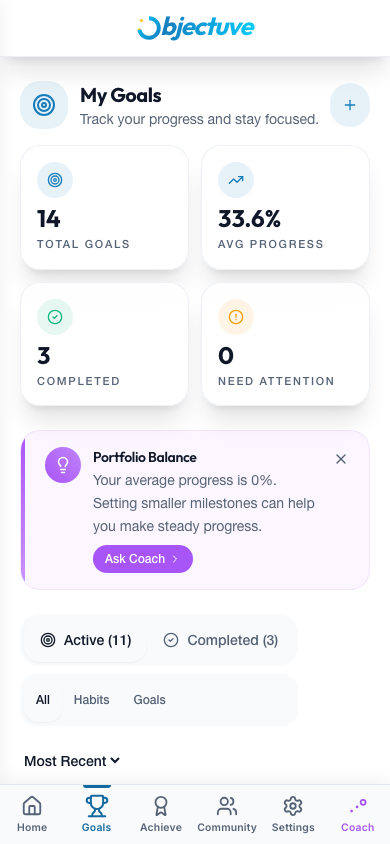
The Goals tab shows all your goals with stats at the top: total count, average progress, completed, and goals needing attention.
You can:
- Filter by type (All, Habits, Goals) and status (Active, Completed)
- Sort by most recent, priority, or category
- Search by name
Creating a goal
Tap the + button on the Dashboard or Goals page. You can move fast or go deep:
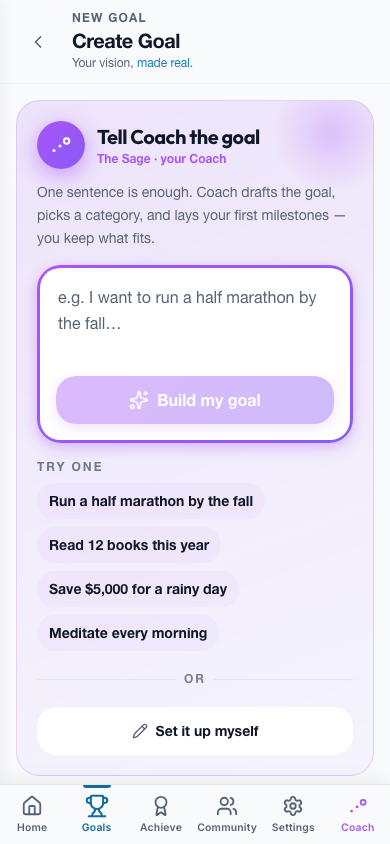
- Quick create — just a Goal Title and an optional Description gets you started in seconds. You can enhance the goal later from its detail page.
- Start from a template — pick a curated goal path (with a suggested shape and milestones) to get moving faster.
- Add more details — expand the form to set everything up front:
| Field | Required | Details |
|---|---|---|
| Name | Yes | A short, memorable goal name |
| Description | No | Context and motivation for the goal |
| Type | Yes | One of seven types: Habit, Short Term, Long Term, Ongoing, Bucket List, New Year's Resolution, or Other |
| Category | Yes | Life area: Family, Health, Relationship, Socializing, Spirituality, Career Development, Life Vision, Personal Development, Wealth Creation, or Other |
| Target date | No | When you want to achieve it |
| Cover image | No | A hero image for your goal card |
| Milestones | No | Sub-steps to break the goal into chunks |
Coach-assisted creation: Tap Auto-Generate to have your Coach suggest 3–5 milestones based on your goal name (requires at least 3 characters). You can also use Refine Description to let your Coach help improve your goal's context. Before you save, tap Check my goal for a quick gut check — Coach looks over what you've entered and offers up to three one-tap tweaks (a sharper title, a realistic target date, a missing milestone). Nothing's required — dismiss any suggestion, or skip the check entirely and save as-is.
Goal detail page
Tap any goal card to open its detail page:
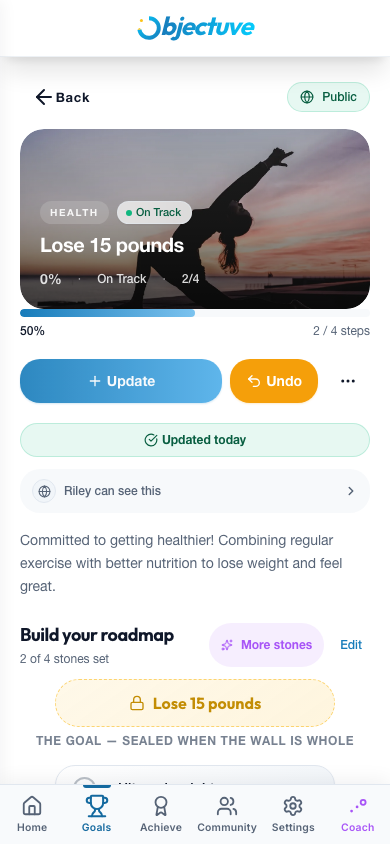
The detail page includes:
- Hero header — cover image, title, category, type, progress, and days remaining
- Progress card — completion percentage and milestone progress
- Partner row — if a goal is shared with your accountability partner, you'll see "Partnered with [name]"
- Insight — a contextual Coach tip (e.g., "Add Milestones", "Almost There!", "Time to Check In")
- Milestones — sub-tasks with completion checkboxes
- Timeline — an immutable log of every update and event
- Encouragements — support from other users following your goal
Enhancement banner
If a goal is missing two or more of: category, type, cover image, or milestones, you'll see an Enhance Your Goal banner. Tap it to fill in the missing details and unlock richer Coach insights.
Goal actions
From the goal detail page, you can:
- Add Update — log progress with a note and optional photo
- Edit — change the goal's name, description, dates, or category
- Toggle Privacy — switch between private and public
- Share — share a public goal link to a community or via native share
- Complete — mark the goal as finished (awards 500 XP)
- Delete — remove the goal (confirmation required)
Progress visualization
Goals with multiple updates show a progress chart with Day, Week, and Month period views. A pace indicator tells you whether you're on track, ahead, or behind schedule based on your target date and current progress rate.
Public goals
Goals are private by default. Toggle a goal to public and anyone with the link can view it at its public URL — no sign-in required.
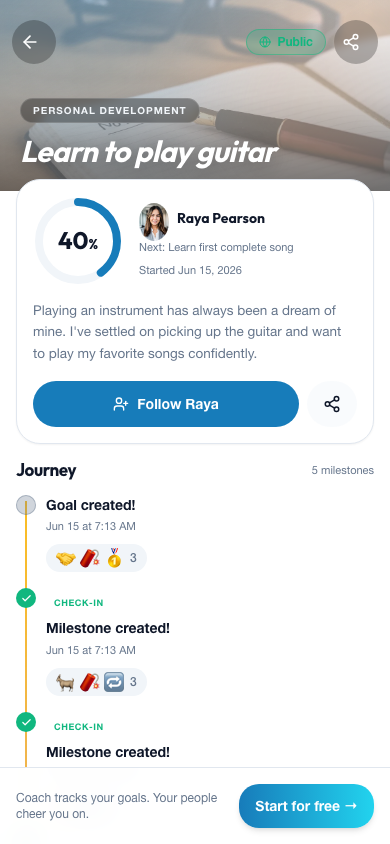
The public goal page leads with a cover hero and the goal title, then a progress ring, the owner, their current streak, and a "next milestone" hint. Below that is the Journey — a typed timeline that distinguishes streak milestones, badge unlocks, Coach insights, check-ins, and the goal's creation. Visitors can react with emoji, Follow the owner, or share the link. Signed-out visitors get a gentle "Start for free" prompt.
Public profile
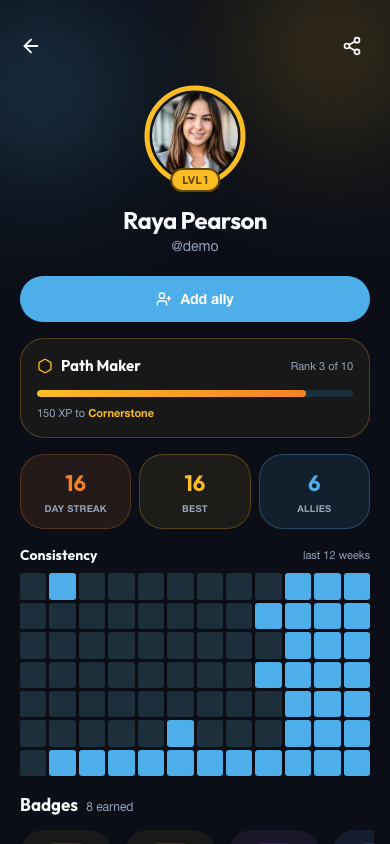
Your profile lives at objectuve.com/u/<your-username> and is public — share it and anyone can see your progress without signing in.
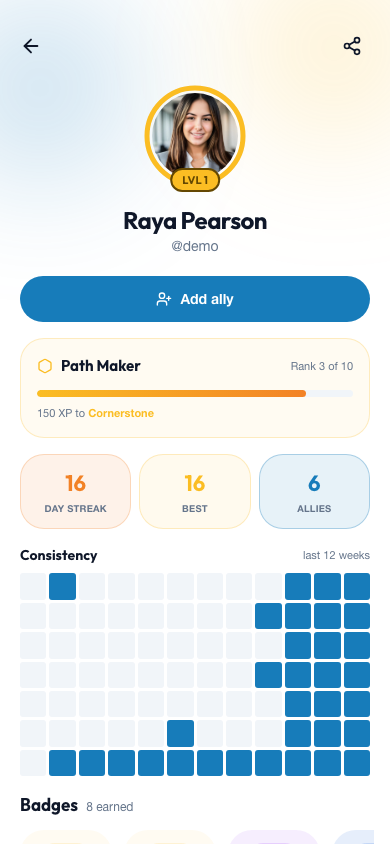
The profile showcases your momentum at a glance:
- Level ring around your avatar and your current rank ("Rank 3 of 10") with XP to the next rank
- Day streak, best streak, and allies stat tiles
- A 12-week consistency heatmap of your active days
- A rarity-tiered badge showcase of the badges you've earned, plus the next badge you're closing in on
- Your public goals
Tap any badge to open its detail — rarity, how you earned it, the date, and how many others have earned it too.
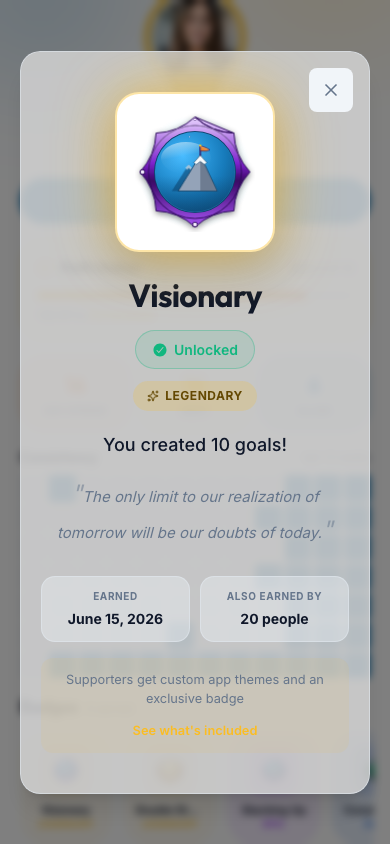
Visitors who are signed in can add you as an ally straight from your profile. Everything is first-class in both light and dark mode.
5. Habits and streaks
Habits are goals with a recurring check-in schedule. They add streaks, calendars, and freezes to the standard goal experience.
Creating a habit
When creating a goal, select Habit as the type. A recurrence section appears with four patterns:
| Pattern | How it works |
|---|---|
| Daily | Due every day |
| Weekly | Pick the day(s) of the week — due on those days each week |
| Custom days | Toggle specific days (M T W T F S S) — due only on those days |
| Every N days | Enter a number (1–365) — due every N days after your last check-in |
Checking in
Two places to check in on a habit:
- Dashboard → Today's practice — one-tap check button next to each due habit (the circular ring around it shows your overall completion rate; the check turns green once you've logged for the day)
- Goal detail page — "Check In" button in the habit tracking section
- Home Screen widget (iOS and Android) — tap a due habit row right from your phone's home screen, no app launch required. See Home Screen Widgets.
Each check-in earns 25 XP and extends your streak.
A widget tap is credited to the day you actually made it, even if you don't reopen the app until later — as long as you open the app again within a day. Go longer than that without opening the app, and the check-in won't sync, so open Objectuve regularly to keep your streak current.
How streaks work
Your streak counts any day you take at least one meaningful action — habit check-ins, goal progress updates, and mood logs all count (creating your very first goal also counts, as a one-time credit). You don't need to complete a specific habit; one logged action keeps the streak alive. Simply signing in does not count — a streak is about doing, not visiting.
Streak boundaries are evaluated in your local timezone, which is set automatically when you sign in — so midnight means midnight where you are. Maintaining your streak awards 50 XP for each day you keep it going.
You're allowed the occasional off day. Objectuve forgives single missed days with a small "grace" budget: you start with one grace day, and earn one more for every 7 days of streak (so the budget is 1 + ⌊streak ÷ 7⌋). A forgiven day is skipped — it doesn't add to your streak number, but it doesn't reset you to zero either. Two missed days in a row will still break the streak. Your longest streak is always preserved.
Your streak, your way
The default streak visual is a growing stack of stones. Everyone can also switch to a sprout for free; Supporters get three more looks — flame, mountain, and waves. Switch in Settings → Supporter — it's a purely cosmetic choice.
Habit goals display a consistency % on the goal hero card rather than a raw progress percentage, reflecting how regularly you've checked in over the habit's cadence.
Celebrations
Reaching a streak day triggers a celebration that scales with the moment:
- A quick toast on early days, so a daily check-in stays a daily check-in
- A richer moment at week milestones (day 7, 14) and whenever you rescue a streak with a grace day
- A full cinematic celebration at day 30 and beyond, at standout marks (50, 100, 365), and any time you beat your personal best
Celebrations respect your device's reduced-motion preference.
Streak freezes
Streak freezes let you deliberately skip a day without touching your grace budget. You earn freezes by hitting streak milestones. Use them from the goal detail page when you know ahead of time that you'll miss a check-in.
6. Mood check-in
Tap How's today feeling? in the Today's practice card on the Dashboard (or the Mood card in the Streamlined view) to log how you're feeling. You can also reach it from your Coach's daily check-in (see §8).
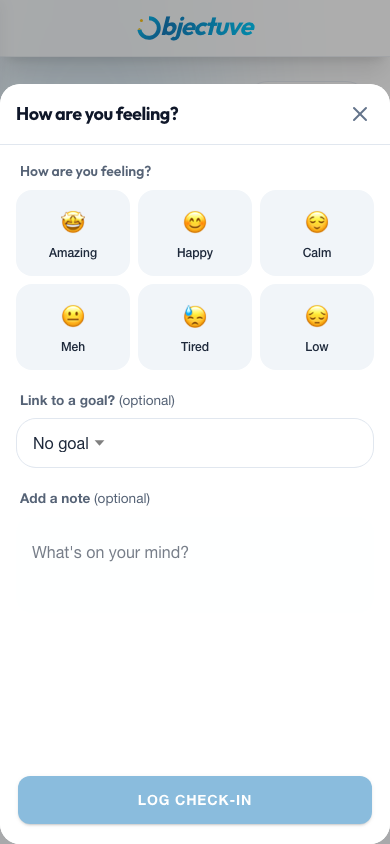
- Select one of six moods: Amazing 🤩, Happy 😊, Calm 😌, Meh 😐, Tired 😓, or Low 😔
- Optionally link the check-in to one of your active goals
- Optionally add a note (up to 300 characters)
- Tap Log Check-In to save
Your mood data feeds into Coach insights, helping the Coach spot patterns between how you feel and how your goals are progressing. Once logged, the prompt row in Today's practice swaps to a confirmation showing your selected mood emoji and the label "Mood logged today".
7. Meet your Coach
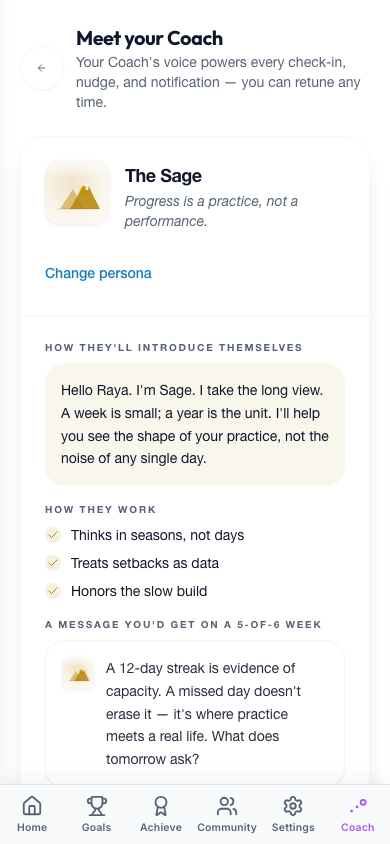
Your Coach is the voice behind every check-in prompt, insight, and notification. Configure it once and you can retune any time.
Open Meet your Coach from Settings → Meet your Coach, or tap Change persona on the Coach tab.
Step 1 — Pick your Coach
Choose one of six personas. Each has a distinct voice and default focus area. Selecting a persona shows rich context before you commit: a short intro, how they work, a sample insight message, a sample notification, and who they work best for.
| Persona | Tagline |
|---|---|
| The Captain | Clear eyes, steady course. |
| The Spark | Energy is contagious — starting now. |
| The Mirror | The answer is usually already in your head. |
| The Rival | You said you wanted this. |
| The Sage | Progress is a practice, not a performance. |
| The Analyst | The data tells a story. |
Step 2 — Dial it in
Fine-tune how the Coach speaks to you:
- Tone — slider from Gentle (1) → Supportive (2) → Balanced (3, default) → Direct (4) → Tough (5)
- Focus areas — pick a primary focus (Streaks, Milestones, Goals, Reflections, etc.) plus an optional secondary focus
Step 3 — Set the rhythm
Choose how often you hear from the Coach:
| Frequency | When you hear from the Coach |
|---|---|
| Every day | Daily check-in prompts and insight cards |
| When I'm active | Only on days you sign in |
| When I need it | On streak breaks, overdue milestones, or inactivity |
| Weekly | A single Sunday planning + Friday review |
A live preview shows how your Coach will sound with your current settings. Save to apply across the app, or reopen Meet Coach later to retune. If you skip Coach setup, defaults are Spark · Tone 3 (Balanced) · Streaks · When I need it until you configure it.
8. Your Coach (the Coach tab)
The Coach tab is your Coach's home — everything personal to you, in one place.
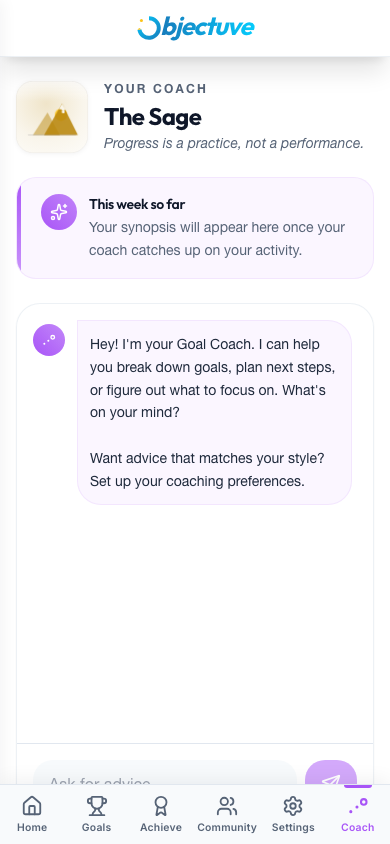
From top to bottom you'll find:
- Today's check-in — when your Coach has a prompt for you, it appears at the top with quick actions to log an event on a goal, update your mood, or dismiss it. (The old
/check-inpage now lives here.) - This week so far — a short synopsis your Coach writes about your recent activity. Early on it nudges you to "log a check-in or two" so it has something to summarize.
- Chat — ask your Coach anything in the Ask for advice… box. It reads your goals, streaks, and check-ins to answer with something specific rather than generic.
- Persona summary — your current persona with editable tiles for Tone & Depth, Focus areas, and Frequency (each links back to Meet your Coach).
- Personality & goal style — your Enneagram result and Goal style snapshot (below).
Enneagram assessment
The optional Enneagram assessment helps your Coach understand how you think and act so it can show up in a way that lands. It's about 40 quick forced-choice questions (~5–10 minutes) and produces your dominant type and wing, plus a short, non-clinical description.
- Start or resume it from the Coach tab, from Settings → Personalization, or from a discovery card that appears on the Dashboard after about a week of activity.
- It's entirely opt-in — skipping it changes nothing else about your experience.
- Once complete, your Coach quietly tailors its language to your type. You can retake it any time; past results are kept as history.
Goal style
The Goal style snapshot is four quick, optional questions — how you've tracked goals before, when you do your best work, your biggest challenge, and whether you prefer to work solo, with a partner, or in a group. You answer these during onboarding (or skip them), and you can edit them any time from the Coach tab. Your Coach uses them to tune its recommendations to the way you actually work.
9. Insights and the goal Coach
Beyond the Coach tab, your Coach surfaces context throughout the app.
Insight cards
You'll see Insight Cards — context-aware prompts that appear at the top of pages:
| Type | Icon | Example |
|---|---|---|
| Tip | Sparkle | "Check in 3x a week to double your success rate" |
| Action | Lightning | "You haven't updated 'Learn Guitar' in 5 days" |
| Insight | Lightbulb | "3 of your 5 goals share the same category" |
| Celebration | Trophy | "You're 85% done — almost there!" |
Insights are cached for 15 minutes and can be dismissed for 24 hours.
Goal Coach modal
On any goal detail page, tap the sparkle button to open the Coach modal for that specific goal. It provides personalized milestone suggestions, strategies, and deeper guidance — the same Coach voice you configured in §7, focused on one goal.
10. Feed and social
Activity feed
The Feed shows a unified stream of activity:
- Progress updates from people you follow (allies)
- Community posts and goal shares
- Your own recent goal activity
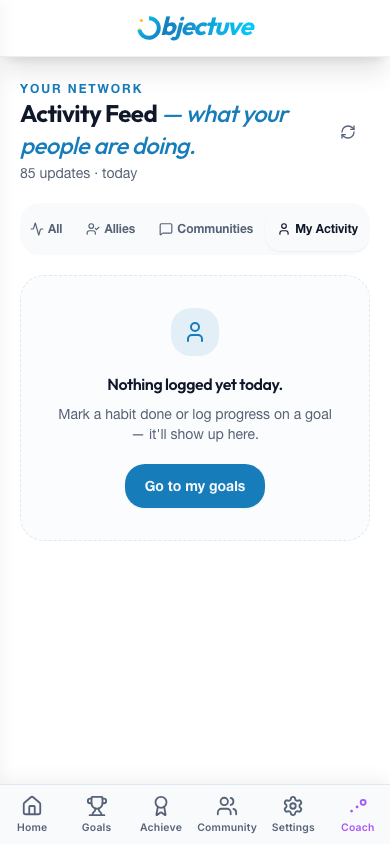
Filter by All, Allies, My Activity, or Communities to focus on what matters. The My Activity filter includes your own private goal events — your personal habit check-ins and goal updates appear here even when the goal is set to private. Badge unlocks appear as dedicated feed items with the badge image, name, rarity tint, and a link straight to that badge in your Achievement Hall.
On mobile, the Feed isn't a bottom-tab — reach it from the Social section of your Dashboard, or from the side menu on desktop.
Allies
Follow other users to become allies. Once connected, their goal progress appears in your feed. You can:
- Encourage — tap the heart on a goal or update to show support
- Comment — leave a message on goal events
- React — add emoji reactions to community feed items
Ally activity also shows in the Social section of your Dashboard, so you stay connected without having to open the Feed. To find new allies, use the Allies section on the Communities page (see §12).
Accountability partners
Take an ally relationship one step further by becoming accountability partners — two people committed to holding each other to their goals. You get one active partner at a time.
Two ways to pair up:
- Ask an existing ally. Open a goal's detail page and tap Find a Partner to invite one of your accepted allies. They get a request they can accept or decline. Accepting awards +50 XP to both of you; if they decline, nothing changes — you stay allies and can ask again later.
- Send an invite link. Not allies yet — or is your would-be partner not on Objectuve at all? Send them a link instead.
Sending a partner-invite link
Tap Send invite link from the Find allies screen (it's also offered in the Focus-mode dashboard's Social nudge step). Objectuve generates a shareable link (app.objectuve.com/invite/…) and opens a share sheet:
- Share it through your phone's native share sheet (Messages, WhatsApp, email, and so on), or Copy link to paste it anywhere.
- Each link is good for 7 days, and you can have up to 3 active invites at once.
- Reopen the sheet any time to see your active invites and Revoke one you no longer need.
Accepting an invite
When someone opens your link they land on a friendly page showing your name and photo and "[You] wants you as their accountability partner." One tap on Accept invite and you're partners — you each earn +50 XP.
- New to Objectuve? They can open the link, sign up, and the pairing finishes automatically — no second step.
- A link that has expired, been revoked, or already been claimed shows a clear, friendly message explaining why — the pairing simply doesn't go through.
Once you're partners
- The Dashboard's Partner widget shows both of your check-in statuses for the day and your mutual streak.
- Every day you both check in, you each earn a +25 XP mutual bonus and the streak grows — with celebrations at 7, 30, 100, and 365 days.
- Tap Nudge to send one supportive boost a day. If your partner misses a habit, you'll get a heads-up so you can cheer them on.
- Either side can end the partnership any time. The mutual streak resets, but individual streaks and XP are untouched.
For the full lifecycle and notification details, see the Accountability partners and Ally social graph feature docs.
11. Achievements, XP, and ranks
The Achieve tab is your Achievement Hall.
XP awards
You earn experience points (XP) for taking action:
| Action | XP earned |
|---|---|
| Habit check-in | 25 XP |
| Daily streak (per day maintained) | 50 XP |
| Goal completion | 500 XP |
| Badge unlock | 100 XP |
| Accountability partnership accepted | 50 XP each |
| Mutual partner check-in bonus | 25 XP each |
Levels and ranks
XP accumulates toward your level. Each level has a rank name:
| Level | XP required | Rank |
|---|---|---|
| 1 | 0 | Open Road |
| 2 | 500 | Bearings |
| 3 | 1,000 | Full Stride |
| 4 | 2,000 | Second Wind |
| 5 | 3,500 | Long Haul |
| 6 | 5,500 | Ridgeline |
| 7 | 8,000 | Frontier |
| 8 | 11,000 | Wayfinder |
| 9 | 15,000 | Far Country |
| 10 | 20,000 | Horizon |
(Past level 10, each new level adds another 5,000 XP.) Level-ups trigger a confetti celebration and a notification.
This XP rank is separate from your streak rank, shown wherever your day streak appears (see §5 Habits and streaks) — the two ladders used to share nine of ten names and were split apart so they read as distinct concepts.
The Achievement Hall
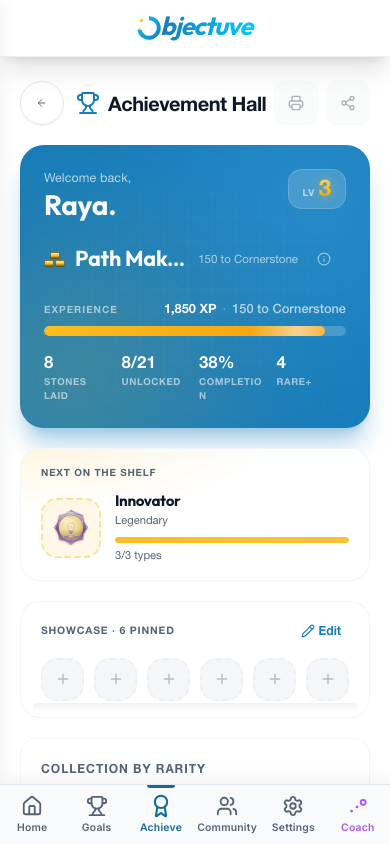
The hall opens with a hero that sums up your progression: your level, your current rank and how much XP to the next one, an experience bar, and a three-stat grid — Unlocked (X of Y), Completion %, and Rare+ (your count of Rare, Epic, and Legendary badges). Below the hero:
- Next on the Shelf — the badge you're closest to unlocking, with a progress bar
- Showcase — your pinned badges (see below)
- Collection by Rarity — your progress across each rarity tier
- Recently unlocked and the full badge grid with filters
- Community challenges — badges you've earned from community challenges (see §12)
Badges
There are more than 20 badges, unlocked by hitting milestones — completing goals, maintaining streaks, joining communities, finding an accountability partner, and more. Each badge has a rarity tier:
- Common — foundational achievements (e.g., create your first goal) — toast shows for 3.5 s
- Rare — sustained effort (e.g., 30-day streak) — toast shows for 4.5 s
- Epic — significant milestones (e.g., 10 goals completed) — toast shows for 5.5 s
- Legendary — exceptional dedication (e.g., 365-day streak) — opens a full-screen Legendary celebration modal with confetti, an 8-second countdown, and two CTAs: View badge and Keep going. The modal respects your device's reduced-motion preference.
Badge showcase
Tap Edit on the Showcase row to select up to 6 badges to display on your Dashboard and profile. Pick the ones you're proudest of.
12. Communities
The Community tab opens your communities hub.
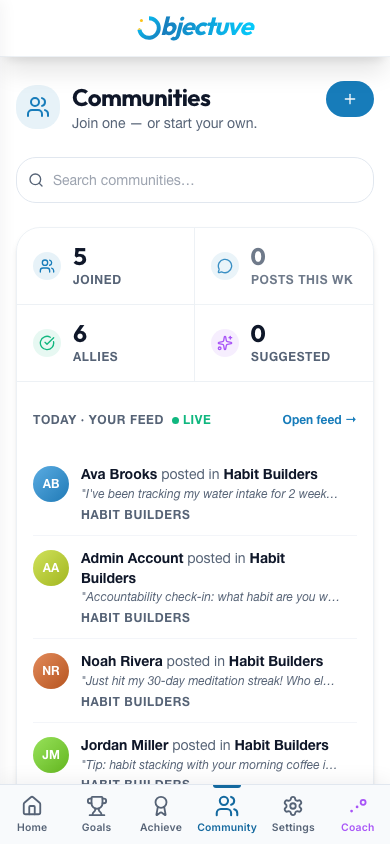
Your hub at a glance
The top of the page is a hub card with:
- A four-up stat strip — Joined (communities you're in), Posts this week, Partners (accountability partners in your communities), and Suggested (communities recommended for you)
- A live Today · Your Feed column of recent activity from your communities, with an Open feed → link to the full activity feed
- A For you column with a nudge from your Coach
Below the hub card is a dedicated Your allies section — your ally count, an avatar stack, an Add an ally button, any pending requests waiting on you, and a See ally activity → link straight to the Allies tab of your feed.
Finding allies
Tap Add an ally (or Find your first ally if you don't have any yet) in the Your allies section to open the ally lookup modal, with three tabs:
- Search — find people by name or @username
- Suggested — people who share your communities or goal categories, each with a reason
- Pending — incoming and sent ally requests (a badge dot flags incoming requests waiting on you)
If you have a pending request waiting, a Review button appears directly on the Your allies section and opens the modal straight to the Pending tab.
Browsing and joining communities
- Search communities by name or description
- Filter by category
- Sort by Recommended, Trending, Members, Active, or Newest
- Toggle between Grid and List views
Tap Join Community on any card to become a member.
Community detail page
Inside a community you'll find:
- Hero header — cover image, name, description, category, and member count
- Quick stats — total progress, activity count, achievements, and discussions
- Tabs — Feed (community posts), Members (roster with roles and stats), Goals (shared goals), and About (guidelines and info)
Community members can post updates, share goals, and interact via reactions and comments.
Community challenges
Community organizers can run time-boxed challenges — for example, "complete 7 goals this month." When a challenge is live, a card pins to the community page:
- Tap Join to take part
- Your progress advances automatically each time you complete a qualifying goal
- A leaderboard ranks participants by progress
- Finish the challenge and you earn its badge, which lands in your Achievement Hall's Community challenges section
Creating a community
Tap the + button on the Communities page to create your own:
- Name (5–50 characters)
- Description (up to 500 characters)
- Category (required)
- Privacy — Public (anyone can join) or Private (invite-only)
- Cover image (optional)
- Guidelines (optional)
13. Notifications
Tap the bell icon in the header to open the notification panel. A badge shows your unread count.
Objectuve sends notifications for:
| Kind | Example |
|---|---|
| Encouragement | "Sarah encouraged your goal" |
| Badge unlock | "You earned the Streak Starter badge!" |
| Comment | "Mike commented on your progress update" |
| Reminder | "You haven't updated 'Learn Piano' in a while" |
| Past due | "Your goal 'Run a 5K' is past its target date" |
| Follow | "Someone is following your public goal" |
| Coach check-in | Personalized prompt from your Coach |
| Reaction | "Someone reacted to your update" |
| Partner request / accepted / ended | Accountability partnership lifecycle events |
| Feedback status | "Your feature request was marked as Planned" |
| Level up | "You reached Level 4 — Cornerstone!" |
| General | Platform updates and community suggestions |
Tap a notification to acknowledge it. Use Mark all read to clear the unread count. Notifications also arrive as native push notifications on mobile.
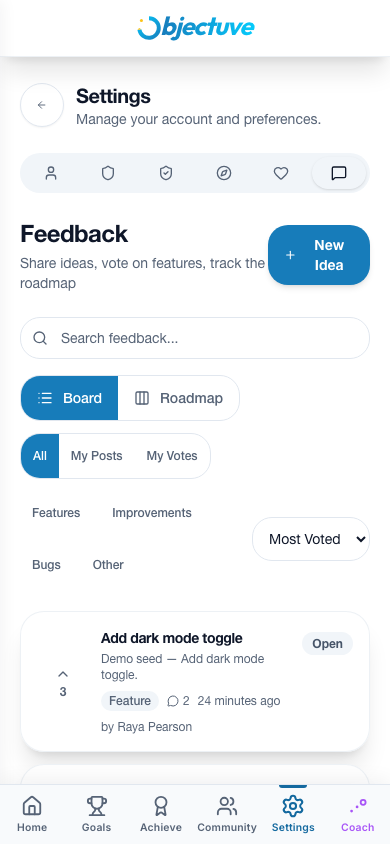
14. Feedback board
The Feedback Board gives you a direct voice in what gets built. Find it under Settings → Feedback.
Submitting feedback
Tap New Idea to submit a feature request, improvement suggestion, or bug report:
| Field | Required | Limit |
|---|---|---|
| Title | Yes | 200 characters |
| Description | No | 2,000 characters |
| Category | Yes | Feature / Improvement / Bug / Other |
Voting and comments
- Upvote any post to signal interest — one vote per user, toggle on/off
- Comment on a post to add context or support (1,000-character limit)
- Filter by category chips: All, Features, Improvements, Bugs, Other
- Sort by Most Voted (default) or Newest
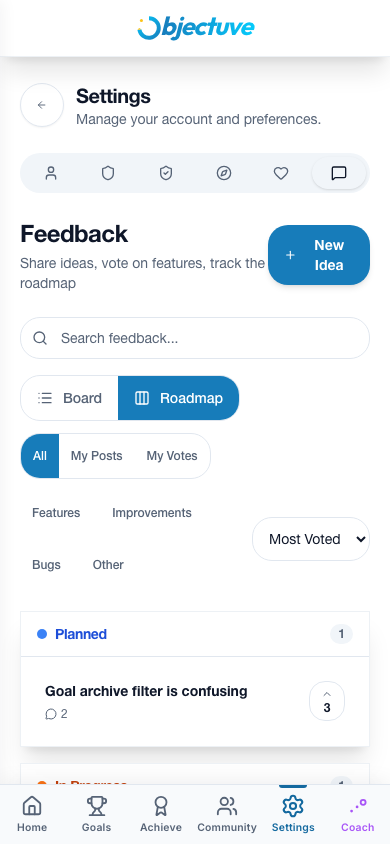
Roadmap view
Toggle to the Roadmap view to see feedback organized as a kanban board with five columns: Open, Planned, In Progress, Completed, and Declined. This is where you can see what the team is working on.
15. Supporter tier
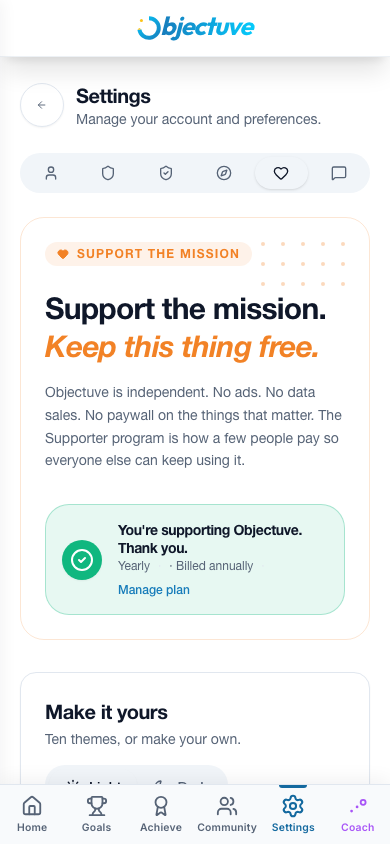
Objectuve is free and always will be — every feature works without paying. The Supporter tier is an optional way to contribute to independent development while getting cosmetic perks.
What Supporters get
- 9 custom app color themes — Sunset, Ocean, Forest, Midnight, Rose, Ember, Lavender, Gold Rush, and Slate
- The flame streak metaphor — switch your stones streak to a flame
- Supporter badge on profile — star icon (monthly/yearly) or crown (lifetime)
- Early access — future beta features before public release
Plans
| Plan | Price | Billing |
|---|---|---|
| Monthly | $4/mo | Recurring |
| Yearly | $36/yr | Recurring (~25% savings) |
| Lifetime | $99+ one-time | Pay what feels fair, once |
No features are paywalled. Supporter perks are purely cosmetic — this is a Public Benefit Company, and the free experience is the full experience.
Managing your subscription
Access subscription management from Settings → Supporter. From there you can view your current plan, change tiers, or cancel. Billing is handled securely through Stripe.
16. Settings, profile, and your data
The Settings page covers your account, appearance, preferences, and privacy.
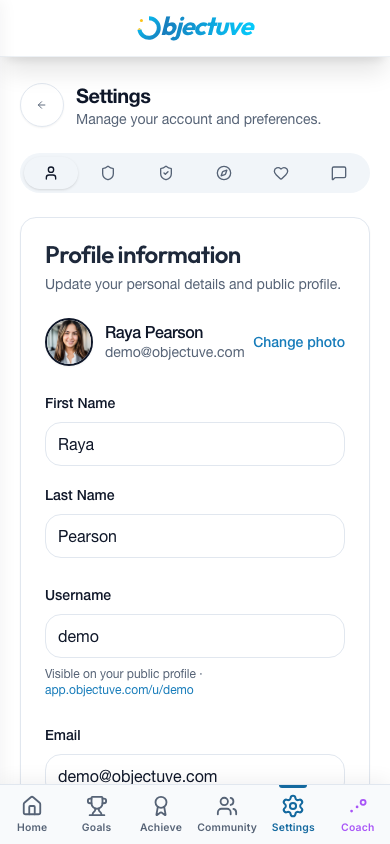
Profile
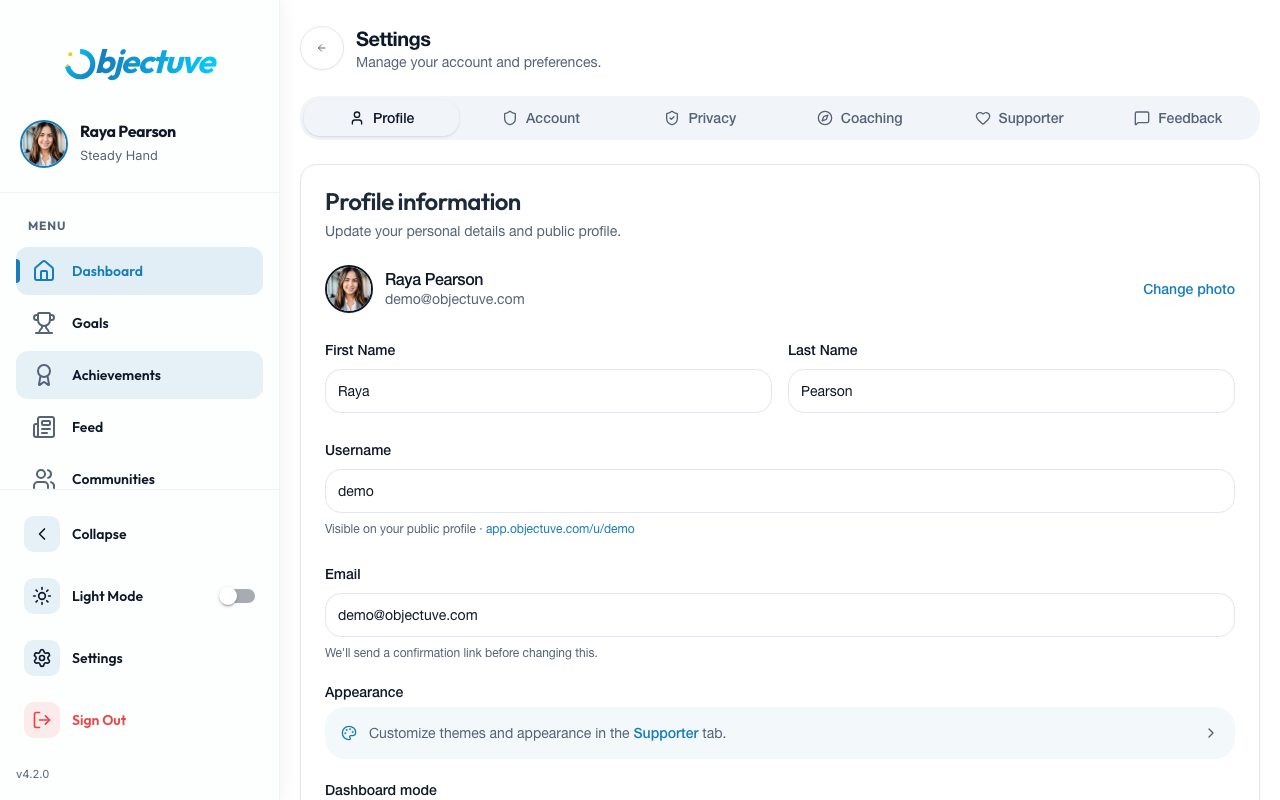
Edit your display name, username, email, and profile photo. Tap the camera icon on your avatar to upload a new photo with built-in cropping.
Appearance
Toggle between light and dark themes using the theme switch in the header or in Settings. Supporters have access to 9 additional color themes — the active accent color also re-tints the side navigation's selected item, so the whole shell stays cohesive.
Personalization
Open the Personalization tab to take or review your Enneagram assessment (see §8).
Dashboard mode & Coach
Choose how your Dashboard opens (see §2), and open Meet your Coach to change your Coach persona, tone, focus, or rhythm at any time (see §7).
Tours
The Tours tab lists every guided tour — the dashboard walkthrough plus the one for each of Goals, Coach, Communities, Achievements, and the Feed — and shows whether you've Completed, Skipped, or not yet taken each one. Tap Start on one you haven't seen, or Replay on one you have, and it opens right on that surface, same as the first time.
Your data (export)
Under Settings → Privacy → Your data, tap Export my data to receive a complete copy of your account. Objectuve builds a ZIP — a machine-readable data.json plus per-table CSVs — and emails you a secure download link that's valid for 30 days. You can request one export per day. This covers your own data only and excludes anything you've deleted.
Blocked users
If someone crosses a line, you can block them right from their post, comment, or profile — you don't need to come here first. Settings → Privacy → Blocked lists everyone you've blocked, with an Unblock button next to each. A block works both ways: once it's in place, neither of you sees the other's posts, comments, or profile anywhere in the app. Unblocking is instant and lets you find and message each other again, but it doesn't bring back a prior ally connection — you'd need to reconnect from scratch. See Blocking & Safety for the full rundown.
Account and security
- Sign out — ends your current session
- Delete account — permanently removes your account and all data (requires confirmation)
Last updated: 2026-08-31 (OBJ-3024: XP rank ladder renamed off the streak vocabulary — Open Road → Horizon; Achievement Hall stat grid corrected to three tiles) · Version: v4.7.0